Account Creation & Login
The Phoenix Client Portal accounts are not created automatically. Access must be requested through our Client Services (CS) team before you can log in for the first time.
New users: Contact our Client Services (CS) team to submit an account creation request via email. Once your account is set up, you will receive a confirmation email containing a temporary password.
First login: Use the temporary password provided in the confirmation email. You will be prompted to set a new password upon first login.
Forgot password: Click “Forgot Password” on the login page. A new temporary password will be sent to your registered email address.
Dashboard
The Dashboard is your home screen upon logging in. It provides an overview of your account.
Note: The account shown in the screenshots below is fictional and for illustration purposes only.
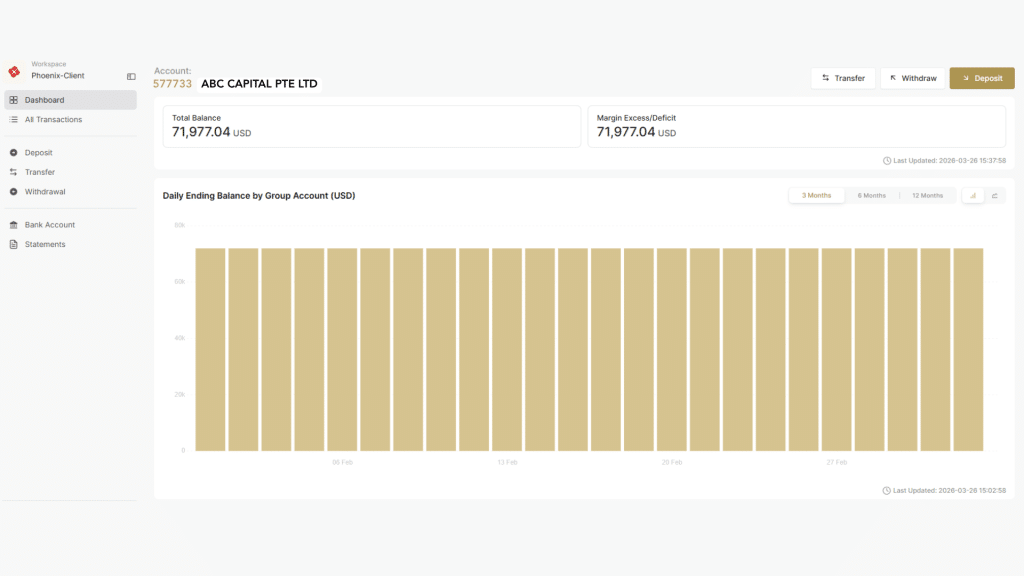
What you will find on the Dashboard:
- Total Balance & Margin Excess/Deficit: Displayed at the top of the page in USD.
- Daily Ending Balance chart: View your balance history by Group Account or by Currencies & Sub Accounts. Toggle between 3, 6, and 12-month views using the buttons at the top right of the chart.
- Quick action buttons: Use the Transfer, Withdraw以及 Deposit shortcuts at the top right of the page to navigate directly to each function.
- Left navigation sidebar: Access all portal sections from here: Dashboard, All Transactions, Deposit, Transfer, Withdrawal, Bank Account, and Statements.
Deposit
You are required to complete the bank transfer first before submitting a deposit request in the portal.
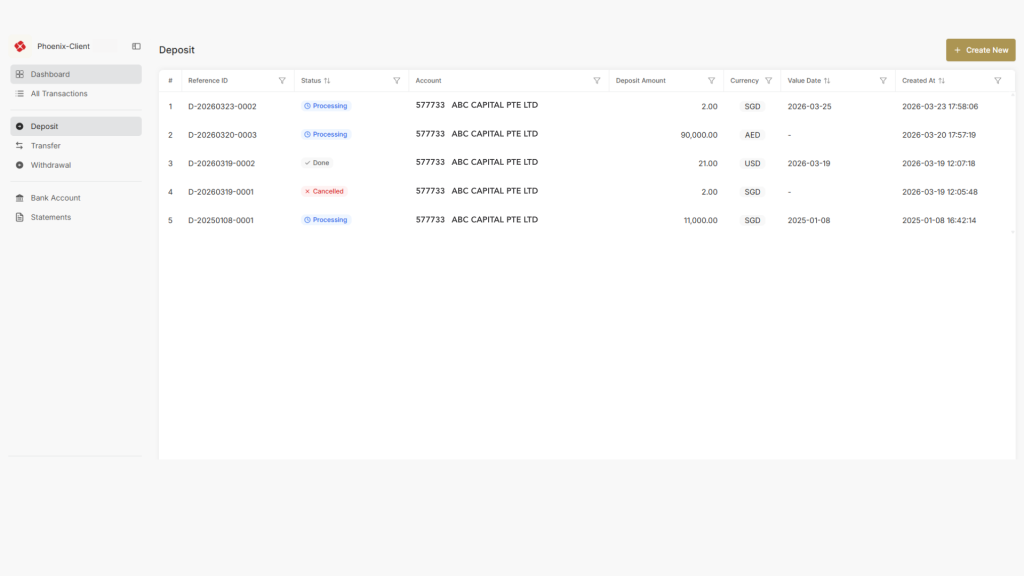
To submit a deposit:
- Transfer funds from your bank account to the designated company bank account. Retain your transaction receipt or screenshot.
- Log in to the Client Portal and navigate to Deposit in the left sidebar.
- Click “+ Create New” at the top right of the page.
- Complete the deposit form and upload the required supporting documents, including a screenshot of your bank transfer confirmation.
- Submit the request. Your deposit will appear in the Deposit list with a status and will be processed accordingly.
Deposit status reference:
- Processing – Deposit is currently under review or being handled.
- Done – Deposit has been successfully processed.
- Cancelled – Deposit was withdrawn or stopped before completion.
- Rejected – Deposit was reviewed but not approved for processing.
Transfer
The Transfer function allows you to move funds between your accounts within the Client Portal.
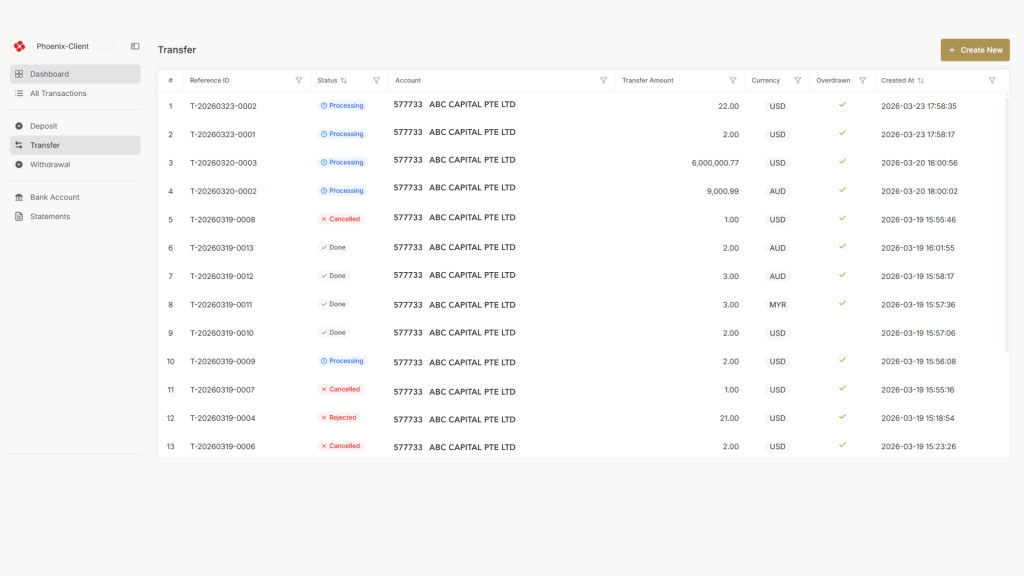
To submit a transfer:
- Navigate to Transfer in the left sidebar, or click the Transfer button on the Dashboard.
- Click “+ Create New” at the top right of the page.
- Select the target account, enter the transfer amount, and submit, which will be processed within 1-2 working days.
Transfer status reference:
- Processing – Transfer is being processed.
- Done – Transfer completed successfully.
- Cancelled – Transfer was withdrawn or stopped before completion.
- Rejected – Transfer was reviewed but not approved for processing.
Withdrawal
The withdrawal process consists of two steps: registering a verified bank account (required once before your first withdrawal), followed by submitting a withdrawal request.
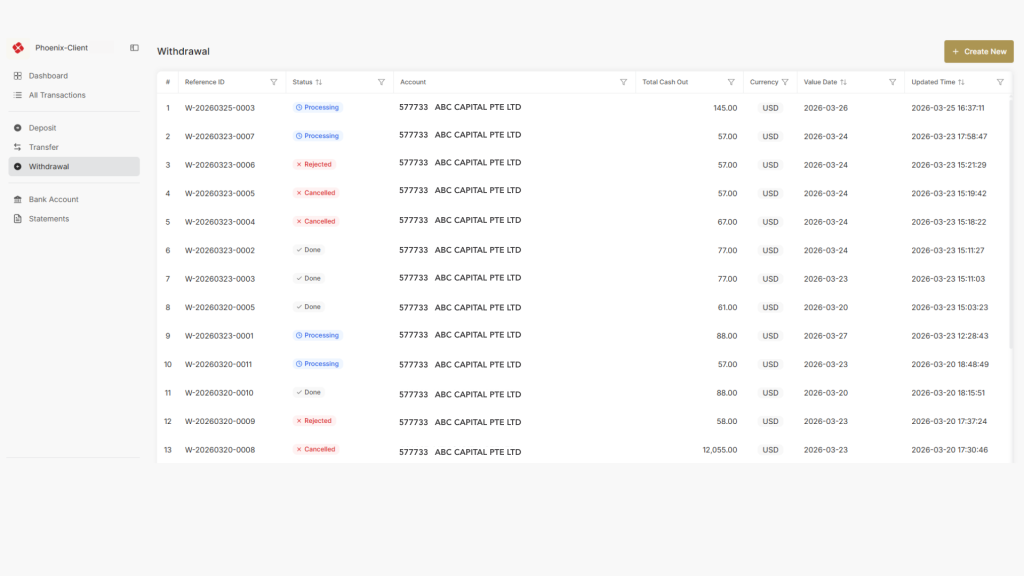
A. Adding a Bank Account (First-Time Setup)
Contact our Client Services (CS) team to submit a bank account creation request. Once your account is set up, you will be informed by the CS team, and the details will be reflected on the Client Portal.
B. Submitting a Withdrawal Request
- Navigate to Withdrawal in the left sidebar, or click the Withdraw button on the Dashboard.
- Click “+ Create New” at the top right of the page.
- Select your verified bank account, enter the withdrawal amount and currency, and submit.
- Your request will be reviewed before funds are disbursed within 3 working days*.
*For reference only and may be delayed by processing or compliance requirements.
Withdrawal status reference:
- Processing – Withdrawal is currently under review or being handled.
- Done – Withdrawal has been successfully processed.
- Cancelled – Withdrawal request was withdrawn or stopped before completion.
- Rejected – Withdrawal was reviewed but not approved for processing.
出金货币每日截止时间、预计到账日期及相关费用
|
货币 (CCY) |
截止日期 周一至周五 (新加坡公共假期及货币假日除外) |
预计到账日 (≤500万美元等值) |
预计到账日 (>500万美元等值) |
手续费 (按次收取) |
|---|---|---|---|---|
|
澳元 (AUD) |
16:00 | 下个工作日 | 2个工作日 | AUD 65 |
|
新西兰元 (NZD) |
16:00 | 下个工作日 | 2个工作日 | NZD 70 |
|
日元 (JPY) |
16:00 | 下个工作日 | 2个工作日 | JPY 6,000 |
|
离岸人民币 (CHN) |
16:00 | 同个工作日 | 下个工作日 | CNY 285 |
|
港币 (HKD) |
16:00 | 同个工作日 | 下个工作日 | HKD 330 |
|
美元 (USD) |
16:00 | 同个工作日 | 下个工作日 | USD 55 |
|
新币 (SGD) |
16:00 | 同个工作日 | 下个工作日 | SGD 10 |
|
英镑 (GBP) |
16:00 | 同个工作日 | 下个工作日 | GBP 38 |
|
欧元 (EUR) |
16:00 | 同个工作日 | 下个工作日 | EUR 40 |
|
加拿大元 (CAD) |
16:00 | 同个工作日 | 下个工作日 | CAD 55 |
|
瑞士法郎 (CHF) |
16:00 | 同个工作日 | 下个工作日 | CHF 40 |
银行标准结算指示(SSI)
Refer to the 银行标准结算指示(SSI) for the corresponding bank details.